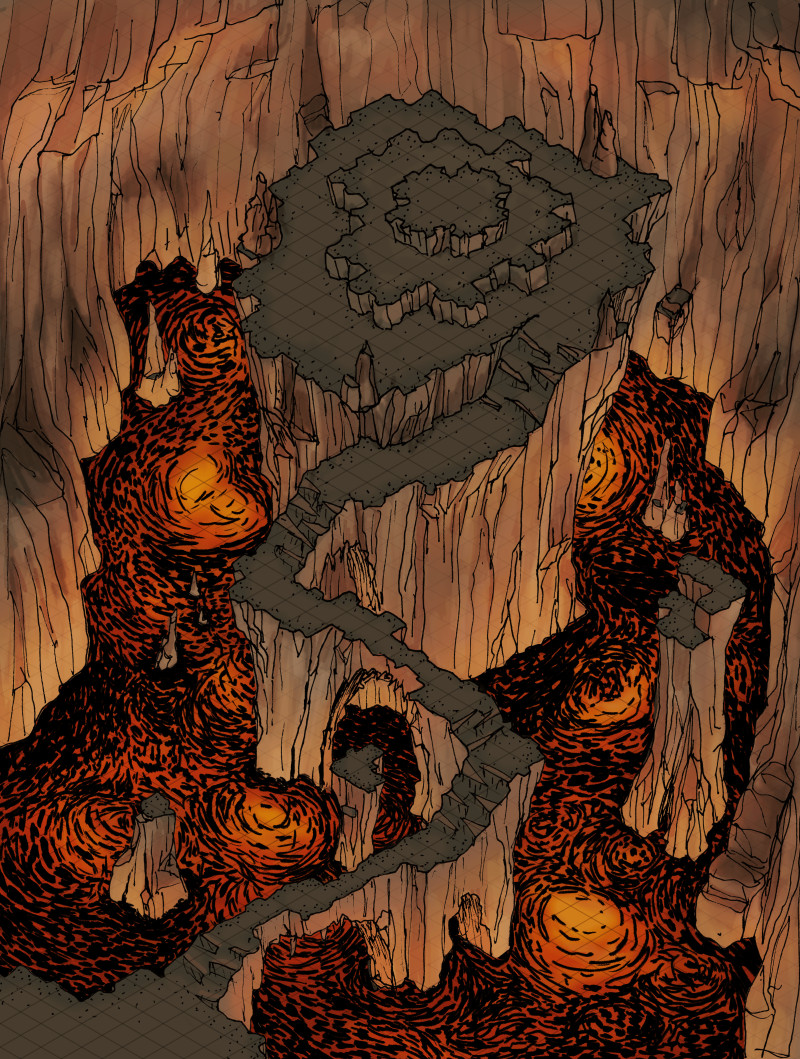
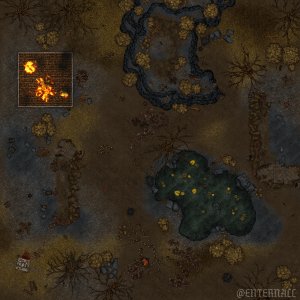
Red Dragon's Lair
Map creator
NieanawieDescription
In Roll20: set your new map page to 34 width and 45 height and set the grid to isometric. Drag the image to the map layer and click YES when it asks if you want to fit to page. That's it! I like to set the grid opacity to 0 when using the maps with grids.
In Owlbear Rodeo: Have a scene set up with an isometric grid. Go to your asset manager to add a new map. Import the image and edit it in the manager. Set the width to 34. In the top left corner, drag the map down until it matches the grid. Now it should align perfectly when imported to your scene!
For Fantasy Grounds, set grid to isometric (886.6 x 512.5) and set image height 45. Turn off grid snapping and drag the image to match grid.
Always wanted to try an isometric map but don't want a hard time setting it up? Try these perfect alignment maps!
All maps can be downloaded [FREE at high resolution here](https://ko-fi.com/i/IG2G11XDPZO). Comes with and without grid.
Actions
More like this
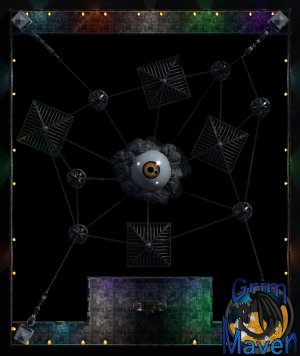
"Interdimensional Prison" (27x32) Are you trapped inside? Or breaking someone out? Either way... this won't be easy!
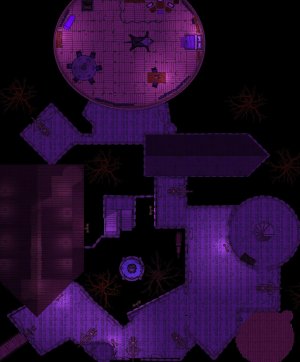
Vampire Castle / Castillo Vampiro
Hi! I'm planning to upload my maps in case anyone finds them useful. They're in PNG format. These a...
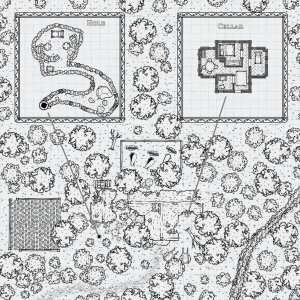
Random Encounter Map
Hey all, I made another map, another try. It's simpler than the other one I had. What I'm trying to...
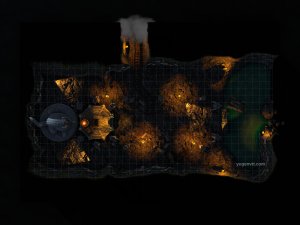
Crystal Cavern, Shrine Transit, and Railroad
[An extension to my world from under Draconia Town](https://www.reddit.com/r/battlemaps/comments/1uj...
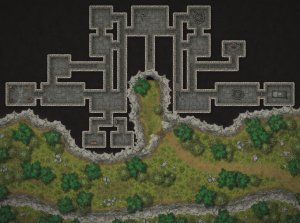
I made a cloneable dungeon, feel free to edit it!
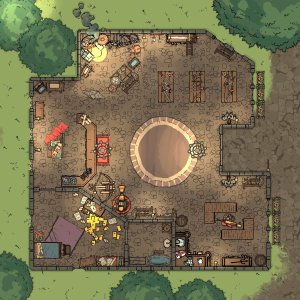
A Small Collection of Maps I've Made :)
Instead of letting them rot on my desktop, here you go! In case you wanted to use some of these your...
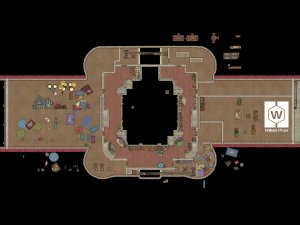
The Market of the Old Wall (Pre-Release) – Feedback Wanted before its full release!
Hii everyone!! Have you ever wanted a **fully detailed marketplace** for your city—something more a...
Battlefield 48*48❗Need Criticism
Hi everyone. This is one of the first maps and I've made it for my Trench Crusade game on a VTT. I’...