![Crystalized Ice Bridges [38x49] & [39x51]](https://images.rpgartstash.com/preview/l8tYTCO3pn0FTlTf7J5Q1zcEZVkiKkpZCRmvOvWa.png)
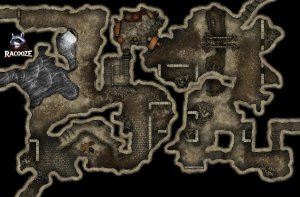
Crystalized Ice Bridges [38x49] & [39x51]
Map creator
NieanawieDescription
All maps can be downloaded FREE, with and without grid at high resolution here: [1st Map ](https://ko-fi.com/i/IE0X822LWMJ)\- [2nd Map](https://ko-fi.com/i/IF7K822LXRJ)
\----------
These frozen crystalized bridges wind their way though pools and waterfalls as they descend deeper into the earth.
\----------
These maps are exactly 38x49 and 39x51. They are designed to be as easy to use as a top-down map.
In Roll20: set your new map page to 38 width and 49 height for the first, and 39 width and 51 height for the second. Set the grid to isometric. Drag the image to the map layer and click Fit to Page when it asks if you want to change size for VTT. That's it! I like to set the grid opacity to 0 when using the maps with grids.
In Owlbear Rodeo: Have a scene set up with an isometric grid. Go to your asset manager to add a new map. Import the image and edit it in the manager. set the width to 38 for the first, or 39 for the second. In the top left corner, drag the map down until it matches the grid. Now it should align perfectly when imported to your scene!
For Fantasy Grounds, set grid to isometric (886.6 x 512.5) and image size height to 49 for the first and 51 for the second. Turn off grid snapping and drag the image to match grid.
In Foundry, be sure to grab the Isometric Perspective add-on.
\----------
These frozen crystalized bridges wind their way though pools and waterfalls as they descend deeper into the earth.
\----------
These maps are exactly 38x49 and 39x51. They are designed to be as easy to use as a top-down map.
In Roll20: set your new map page to 38 width and 49 height for the first, and 39 width and 51 height for the second. Set the grid to isometric. Drag the image to the map layer and click Fit to Page when it asks if you want to change size for VTT. That's it! I like to set the grid opacity to 0 when using the maps with grids.
In Owlbear Rodeo: Have a scene set up with an isometric grid. Go to your asset manager to add a new map. Import the image and edit it in the manager. set the width to 38 for the first, or 39 for the second. In the top left corner, drag the map down until it matches the grid. Now it should align perfectly when imported to your scene!
For Fantasy Grounds, set grid to isometric (886.6 x 512.5) and image size height to 49 for the first and 51 for the second. Turn off grid snapping and drag the image to match grid.
In Foundry, be sure to grab the Isometric Perspective add-on.
Actions
Related Arts
![Crystalized Ice Bridges [38x49] & [39x51]](https://images.rpgartstash.com/thumb/17DWJgpCuEGiinyNF7q07r73FDVvmvoMXyywKLBM.png)
1
Crystalized Ice Bridges [38x49] & [39x51]
All maps can be downloaded FREE, with and without grid at high resolution here: [1st Map ](https://k...
map
dungeon
frozen
+12 more
More like this
1
Desatysso’s old Stronghold
map
Mountain
Hills
+12 more
Trying with Sewers
map
dungeon
Fantasy - Dungeon
+12 more
1
Explore the Cavern of Corruption – 4 Battle Maps in One Cave System Pack
map
dungeon
Caves
+8 more
![Briny Maze | Far Realm [70 x 90]](https://images.rpgartstash.com/thumb/BACJ4A7JdKA3qvAPfq7yi6Dr5F0JnvEnwPLdOKsI.jpg)
1
Briny Maze | Far Realm [70 x 90]
map
horror
Fantasy - Dungeon
+9 more
![Woodworker & Bowyer Shop & Home [36 x 24]](https://images.rpgartstash.com/thumb/qQXDHvHsIgyMOJ7cOa9keFD8QkVFFbHNrUNeCui3.jpg)
1
Woodworker & Bowyer Shop & Home [36 x 24]
map
house
Forest
+12 more
The Sandstone District 30x40 battle map and scene - Cropox Battlemaps & Red Sun Art
map
desert
City
+14 more
![Underwater Cave [46x40]](https://images.rpgartstash.com/thumb/5JLm5PI8ZKMGx3ZRf8lni71ZLaA5dBIul6Osoq6j.jpg)
1
Underwater Cave [46x40]
map
dungeon
cave
+8 more
The Back Door - Agents of Edgewatch
map
cave
Fantasy - Dungeon
+8 more